
Skills & Tools
Skills and tools extend what an AI model can do in a chat. Skills give the model specialized instructions for a particular type of task, while tools let it take actions beyond writing a response.
You can use them when you need a more focused workflow or information that is not already included in the conversation. The available skills and tools may depend on the selected model.
What are skills?
A skill is a reusable set of instructions that guides the model through a specific task. It can define a preferred process, explain how to handle certain information, or include resources that the model can refer to when completing the task.
BuiltChat provides system skills maintained by BuiltChat. You can add these to your collection, or create your own custom skills for workflows you use regularly. Custom skills are useful when the same background, rules, or steps would otherwise need to be repeated in every prompt.
Managing your skills
Open Settings → Skills & Tools to create and manage your skills. The System tab contains built-in skills that you can add, while My Skills contains the skills currently available to you.
From My Skills, you can create a custom skill, edit a skill you created, or temporarily disable a skill without removing it. Give each custom skill a clear title and description, and write instructions that explain the desired result, important rules, and any steps the model should follow.
What are tools?
Tools allow supported models to perform specific actions. For example, a tool might search for current information, work with content, or connect to another service. Unlike skills, which guide how the model approaches a task, tools give it an additional way to complete the task.
Tools are created and maintained by the BuiltChat team. Most are built into the system and become available when the model needs them. Built-in tools do not appear as options and cannot be changed or managed by users.
BuiltChat also provides optional tools that you can enable or disable, including:
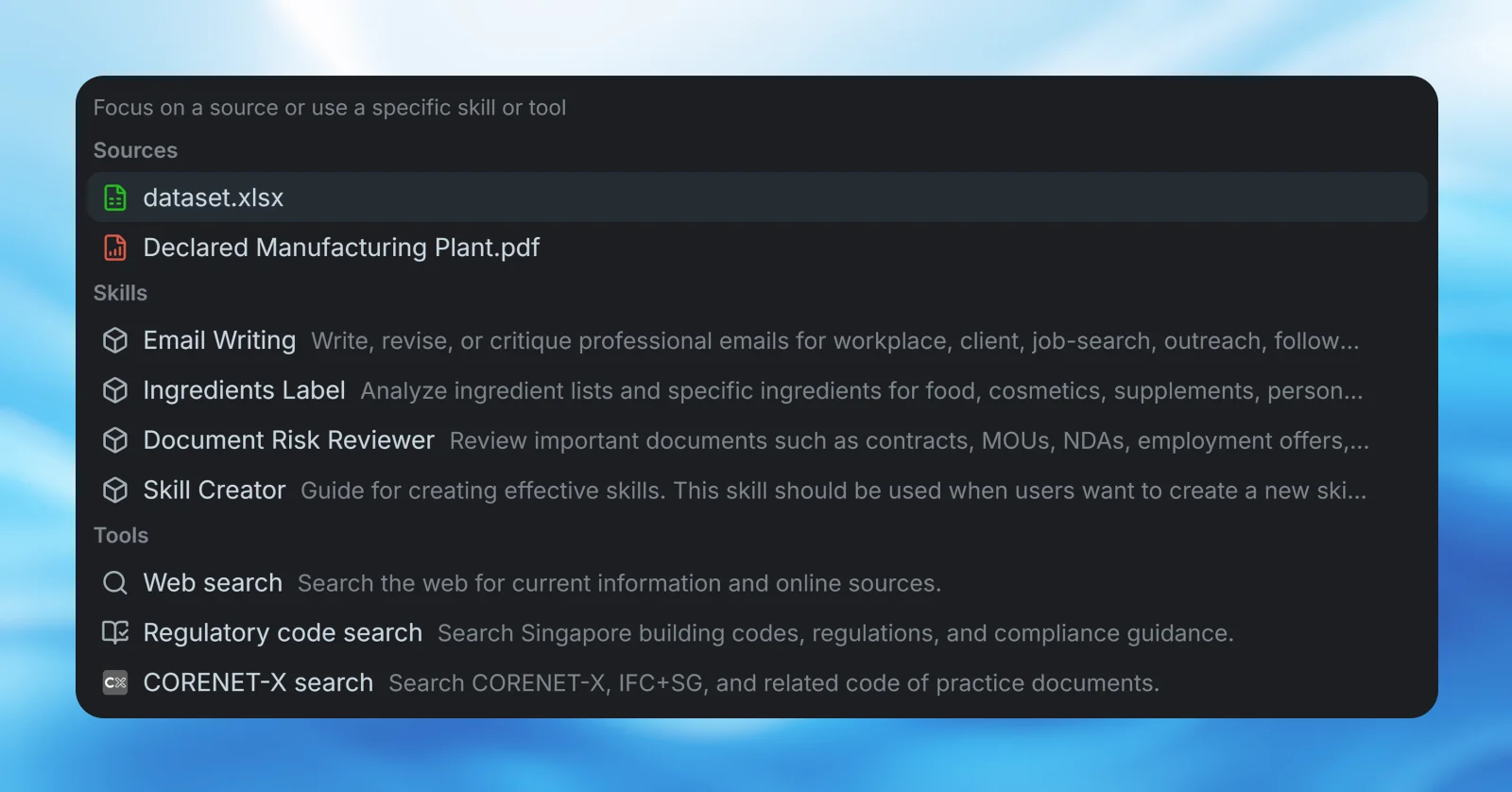
Web search: Find current information and sources from the web.
Regulatory code search: Search Singapore building codes, regulations, and compliance guidance.
CORENET-X search: Search CORENET-X, IFC+SG, and related code of practice documents.
You can manage these optional tools under Settings → Skills & Tools → Tools. Disabling an optional tool removes it from your available options, but does not affect BuiltChat's built-in tools.
Using a skill or tool in chat
Type @ in the message box to open your available sources, skills, and optional tools, then choose the item you want to use. To show only skills, type $. You can continue typing after either shortcut to search by name or description. Only optional tools that you can manage appear in this list.
After selecting a skill or tool, write your request as usual and include any context needed to complete it. For example, select an optional research tool when you want the model to use it for current or specialist information, or select a skill when you want the model to follow its defined workflow.
The model decides when and how to use the selected capability. Some requests may involve several searches or steps before the final response is ready. It may also use a built-in tool automatically when needed. The chat will show tool activity while the model is working.
Getting better results
A skill or tool works best when paired with a clear prompt. Explain your goal, identify the information that matters, and specify the format you want. When using a search tool, include useful details such as the topic, location, regulation, or time period you are interested in.
Tool results and AI responses can be incomplete or inaccurate. Review important information, open any cited sources, and verify professional, regulatory, or safety-critical advice before relying on it.