
Image Generation
BuiltChat can generate images in two places: directly in a chat or in the dedicated image generation workspace. Use image generation in chat for quick visualizations while you are having a conversation. For creating, editing, organizing, and sharing images, use the Image Generation workspace.
Generating images in chat
Chat image generation is intended for quick visualization without leaving the conversation. Use the dedicated image generation workspace for a complete workflow, including editing, inpainting, and organizing your results.
Image generation workspace
The image generation workspace is designed for a complete image workflow. Enter a prompt, choose a model, add any input images, and generate. Your generations are created inside a board.
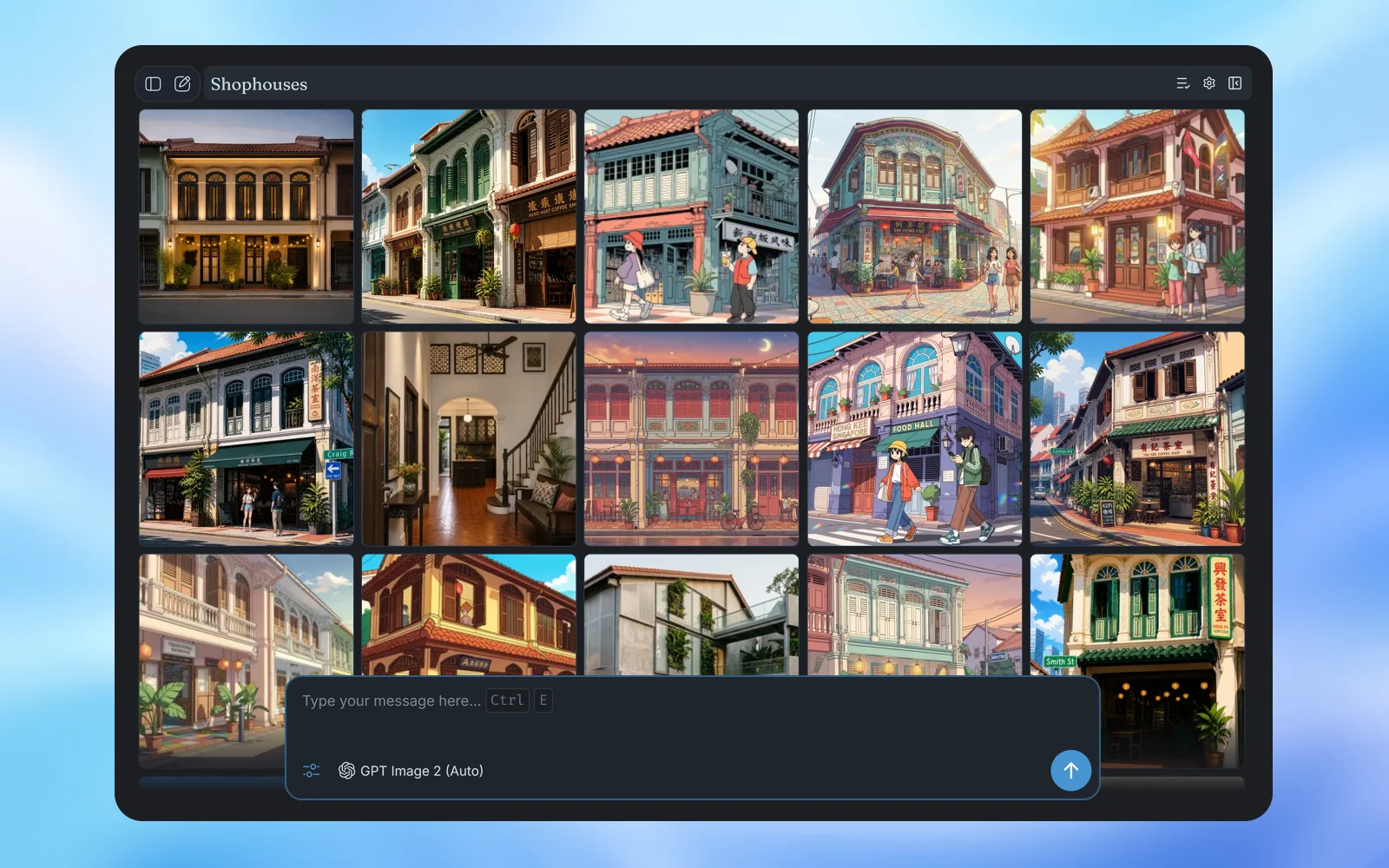
Boards work like folders and keep related generations together. Create separate boards for different projects, subjects, or rounds of exploration. After an image is generated, you can also add it to an album. Albums are useful for collecting selected images from your boards, such as favorites, final options, or images prepared for presentation.
To continue working from a result, drag the completed image into the prompt box. It will be added as an input image, allowing you to describe the changes or variations you want in the next generation.
Choosing a model
Image generation models differ in visual style, capabilities, generation speed, and usage cost. Choose a model based on the result you need and the amount of time and usage you want to spend. A faster model can be useful for exploring ideas, while another model may be better suited to a polished result.
Most models support image editing by accepting one or more input images. Some models also support inpainting, which lets you paint a mask over an input image to guide where changes should be made. The controls shown in the workspace may change depending on the selected model and its capabilities.
Editing and inpainting
To edit an image, add the original as an input and describe what you want to change. Include what should remain the same when details such as the composition, lighting, materials, or colors need to be preserved.
For a more targeted edit, use inpainting. Add the original as an input image, then open the mask tool and paint over the area you want to change. Save the mask when you are finished.
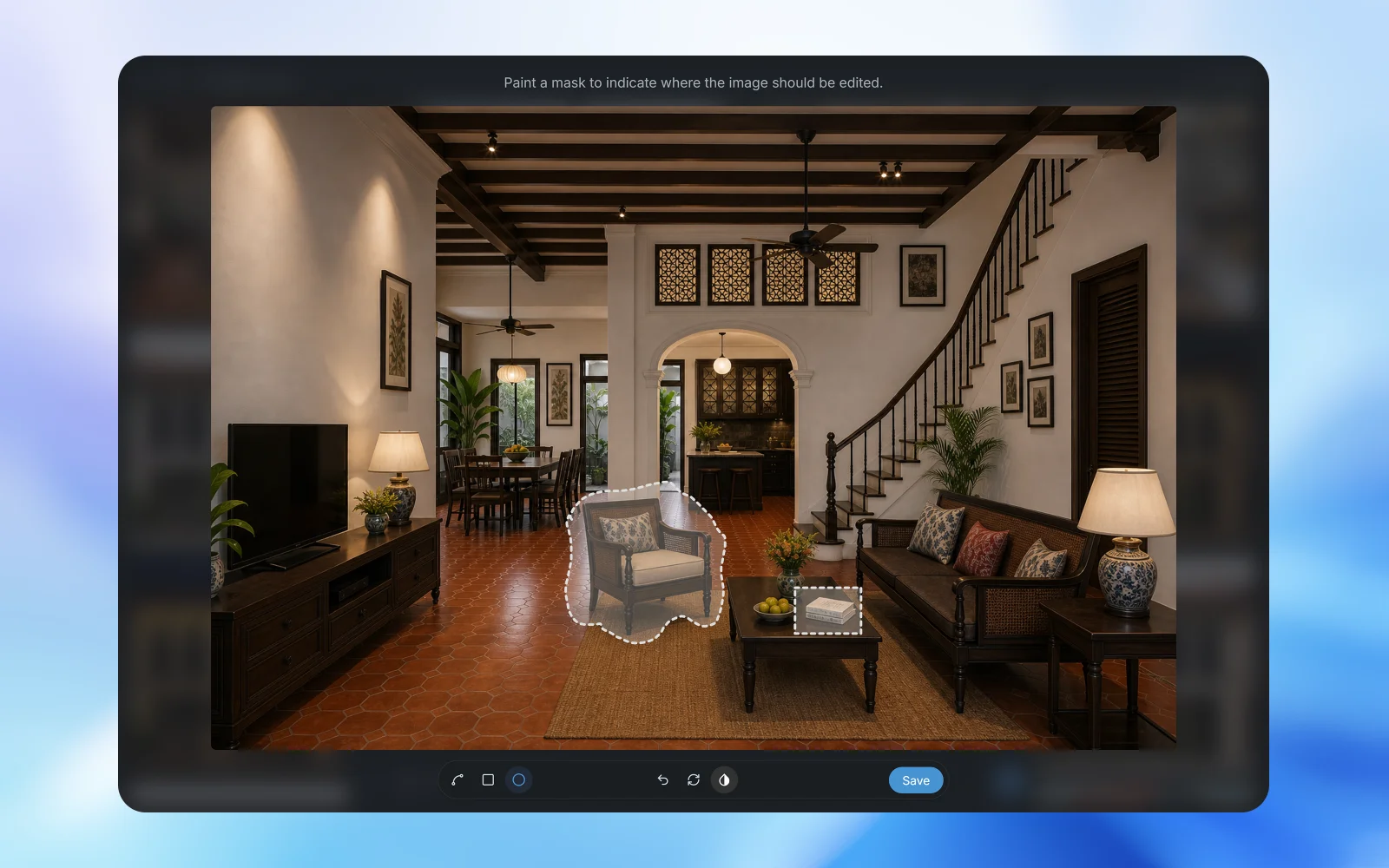
Describe the intended change in your prompt. For example, after masking the chair shown above, write “replace the masked chair with a green velvet armchair.” The mask identifies the area, but does not tell the model what to put there.
The model uses the mask as guidance and may not follow its exact shape with complete precision. If the first result is not right, make the prompt more precise, adjust the mask, and generate again.
Advanced options
Open Advanced Options to adjust settings such as aspect ratio, quality, and output format. The available settings depend on the selected model, so some options may not always be shown.
Styles
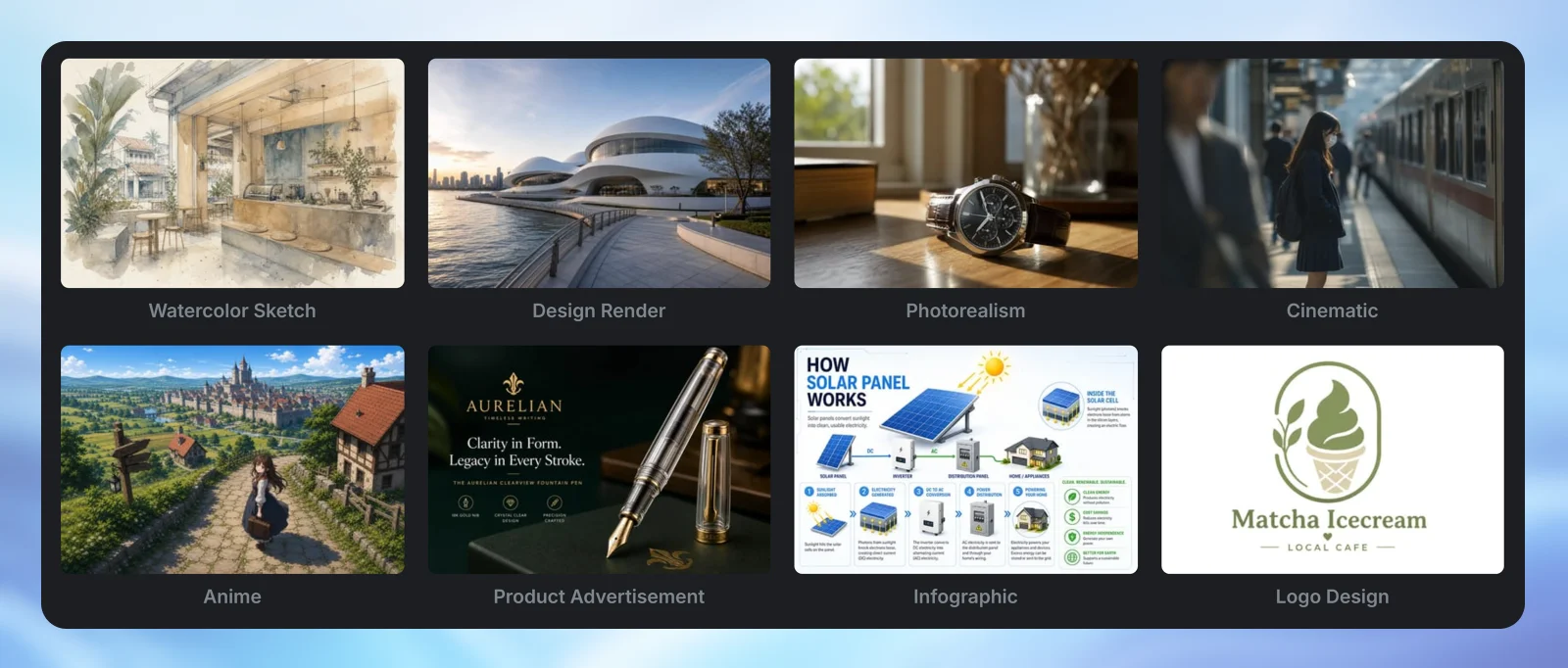
BuiltChat includes a collection of default styles that you can apply to a generation. Choose one to quickly give your image a familiar visual direction, such as photorealism, a watercolor sketch, anime, or an infographic.
If the default styles do not match what you need, use the Style Builder to create your own. Select or describe details such as the visual style, mood, intended use, composition, lighting, color palette, materials, and environment. You can also add constraints and other instructions before using the completed style in your prompt.
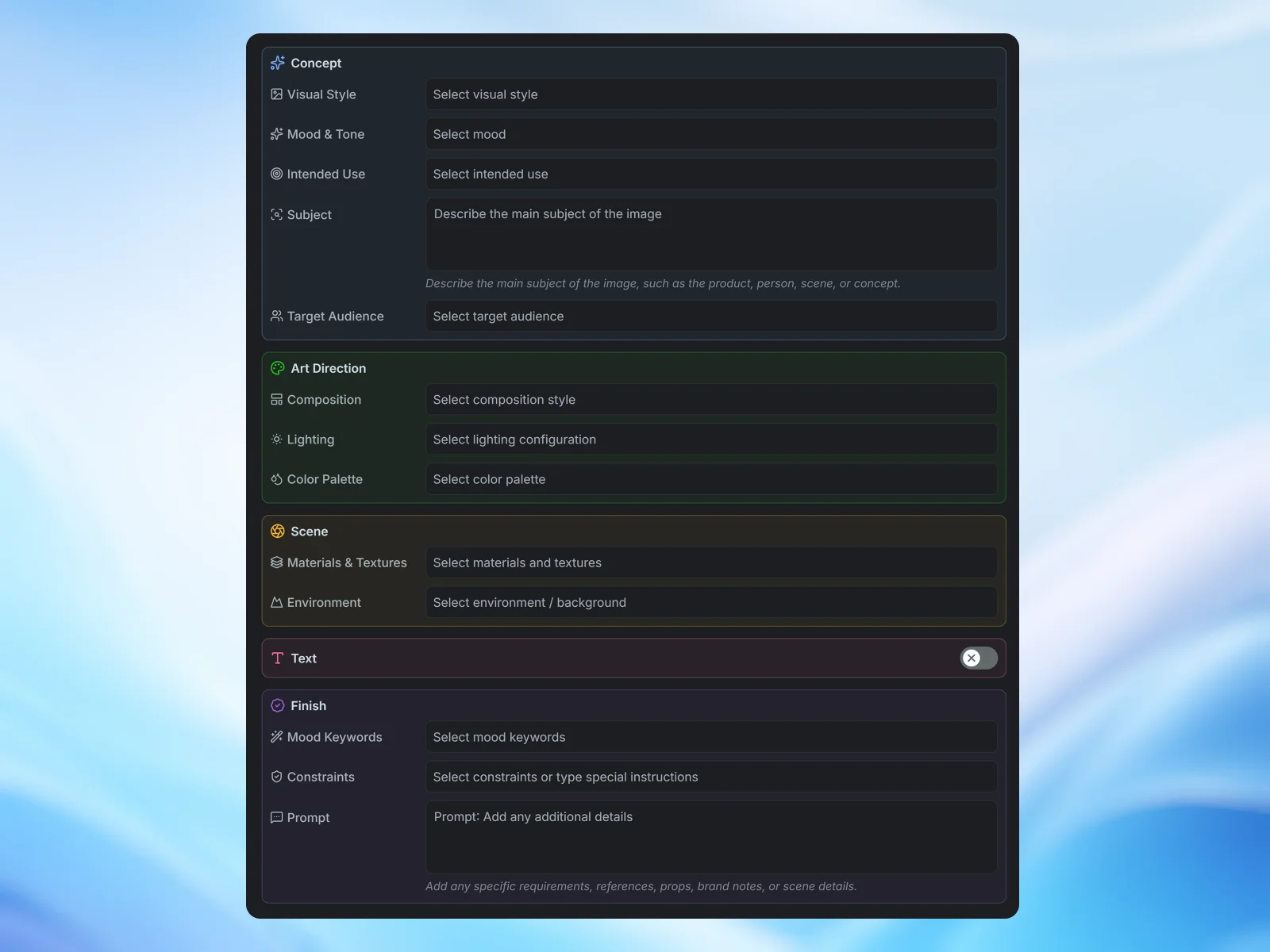
Use the Prompt field inside the Style Builder to describe the image you want and add any details or instructions that are not covered by the other sections. The text entered there is used as the prompt for the generation.
Generating Multiple Images
Some models can generate multiple images from a single request. This consumes more usage because each output is a separate generated image, so it is usually better to generate one image at a time while exploring ideas, testing a prompt, or making revisions.
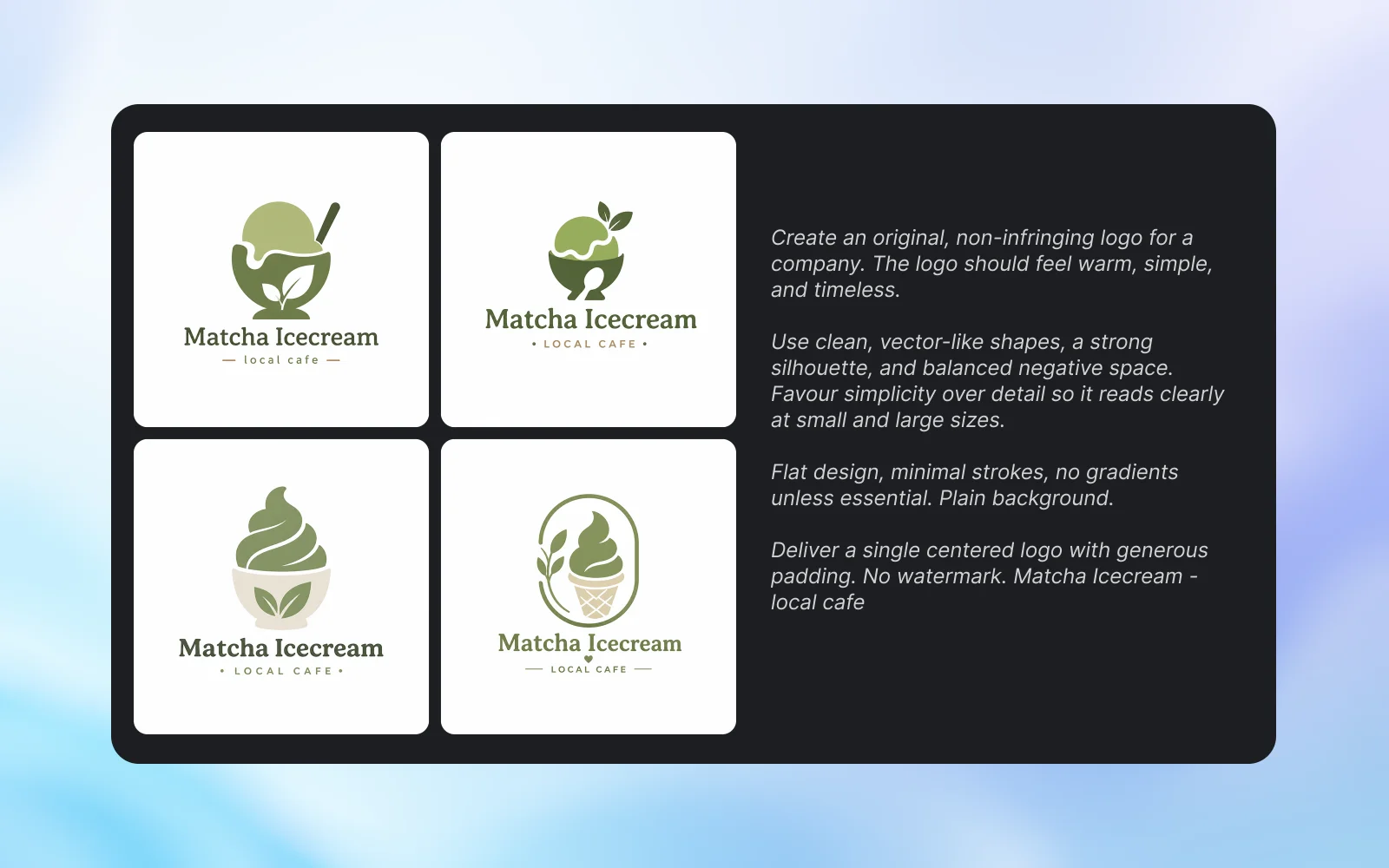
Use multiple outputs when you are confident that the prompt already works well and want several finished images. With GPT Image 2, the model is aware of the other images created in the same request. This helps reduce repeated results and makes it useful for creating a coordinated set, such as four posters that share the same visual style and maintain continuity across the series.
Sharing images
You can share an entire board, an album, or an individual image. Choose a public share when anyone with the link should be able to open it, or a private share when access should be restricted. Check the selected sharing option before sending the link, especially when the images contain private or project-sensitive material.
Getting better results
Write prompts that describe both the subject and the intended result. Include useful details such as composition, viewpoint, setting, materials, lighting, mood, colors, and any text that must appear. When editing, say what must not change as well as what should change.
Treat generation as an iterative process. Begin with the main idea, review the result, then use the completed image as an input for a more focused revision. Changing one or two instructions at a time makes it easier to understand which prompt or setting produced the improvement.