
Files & Sources
Sources give the AI reference material to use alongside your messages. You can add a website, paste plain text, or attach a supported file to a chat. This is useful when you want the model to answer questions, summarize content, compare information, or create something based on material you provide.
After adding a source, mention which source you want the model to use and what you want it to do. You do not need to type the exact file name or full website address, a description such as “the annual report” or “the product website” is enough.
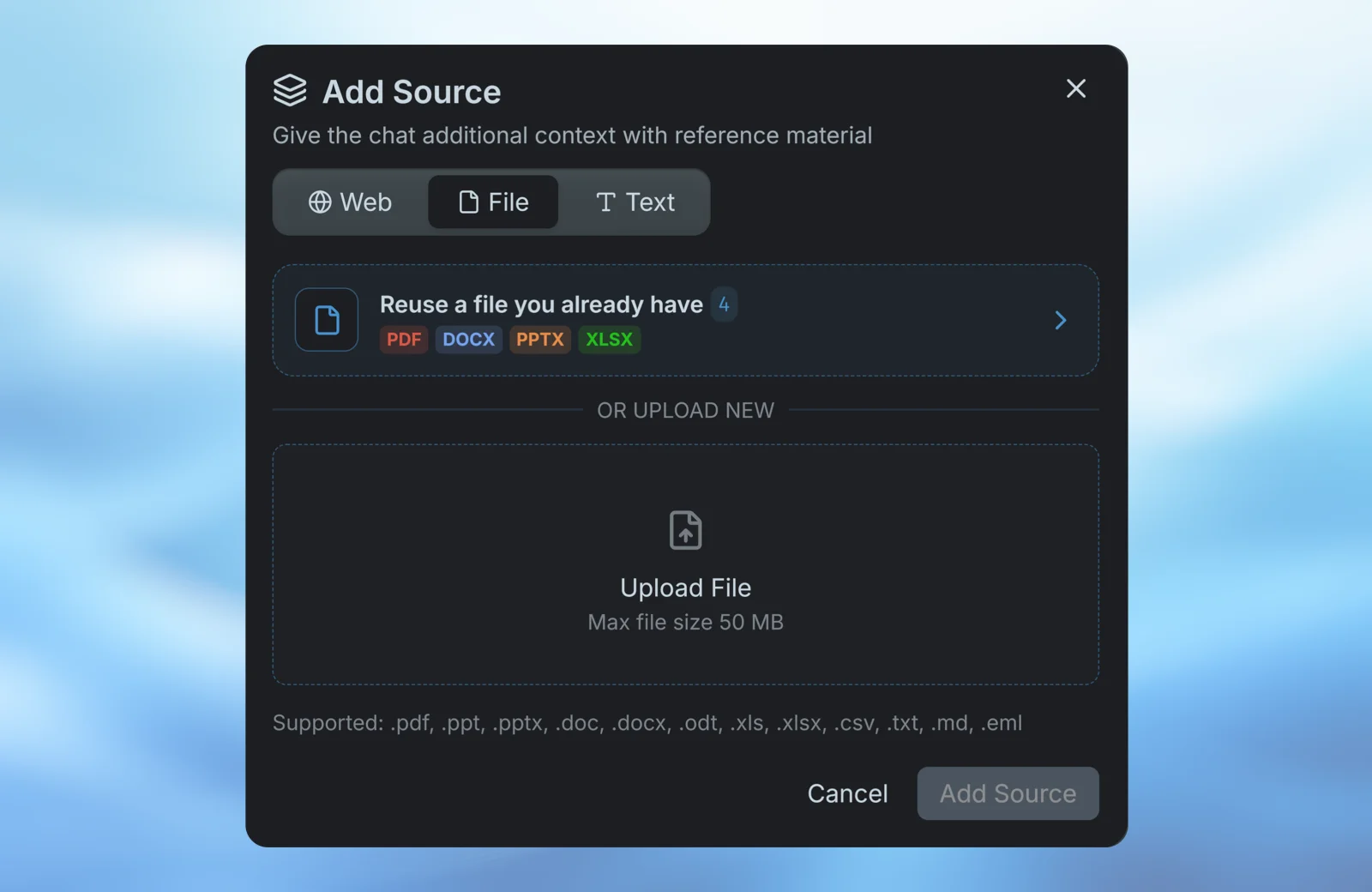
Adding a source
Open Sources in the chat workspace and select Add. Choose the type of source you want to add:
- Web: Enter the URL of a webpage you want the model to reference.
- Text: Paste plain text directly into the source form.
- File: Upload a new file or select one you uploaded previously.
You can also type @ in the message box to find and select a source. Mentioning a source this way makes it clear which material you want the model to use. You can also use the source commands in the message box to open the web, text, or file source form.
How file sources work
Adding a new file happens in two stages behind the scenes:
- Upload: BuiltChat saves and processes the file so its contents can be used by the AI.
- Attach: The processed file is added to the current chat as a source.
Uploading and attaching are separate so a file only needs to be uploaded and processed once. In another chat, choose Reuse a file you already have and select the file to attach it again without uploading it a second time.
A file can only be added once to the same chat. When it is attached to a different chat, that chat can use the file as source material without changing the original file.
Supported file types
BuiltChat can process the following file types:
- Documents: PDF, DOC, DOCX, and ODT
- Presentations: PPT and PPTX
- Spreadsheets: XLS, XLSX, and CSV
- Text: TXT and Markdown
- Email: EML
The maximum upload size is 50 MB per file.
File processing and usage
Processing a new file consumes usage. The amount depends on the file type, the number of pages, and the complexity of its contents. Larger documents and files with more pages generally require more processing.
Documents with many images, scanned pages, or layouts from which text cannot be extracted reliably may be processed with optical character recognition (OCR). OCR takes longer and consumes more usage than standard text extraction. Keep the chat open while the source is being prepared, and wait until processing is complete before asking questions about it.
Reusing an already processed file avoids uploading and processing the same file again. Usage from the model's later responses is still calculated normally.
Getting better results
Mention the source you want the model to use in your prompt. You can refer to it naturally, such as “Using the contract, list the payment terms” or “Compare the sales spreadsheet with the quarterly report.” You do not need to spell out the complete file name or source URL. If several sources have similar names, use @ to select the right one easily.
Be especially clear when a source is long or contains many pages. The model focuses on the parts that appear most relevant to your request, rather than using every page at once. Explain exactly what you are looking for and include useful details such as the topic, date range, page, section, sheet, or column when you know them.
For example, instead of asking “What does this document say?”, ask “Using the project report, summarize the delays mentioned in the construction schedule and list the reasons given for each delay.” For a large task, work through the source in smaller stages. If you attach several sources, say whether you want them summarized separately, compared, or combined.
Extracted content can be incomplete when a file contains scans, complex layouts, unusual formatting, or low-quality images. Review important answers against the original source, especially when accuracy is critical.
Managing Files
Your uploaded files are stored in BuiltChat so you can reuse them in other chats without uploading them again. Open Settings → Files to view and manage your files.
Deleting a file is permanent. Every chat that uses the file as a source will immediately lose access to it, and the model will not be able to use or refer to that file in future prompts. Only delete a file when you no longer need it in any chat.