
Chat & Prompting
Chat is the main way to work with AI in BuiltChat. You can ask a question, give an instruction, share content to work with, or describe a goal you want help achieving.
A prompt is the message you send to the AI. It does not need to be perfect. Start in your own words, review the response, and use follow-up messages to clarify your request or improve the result.
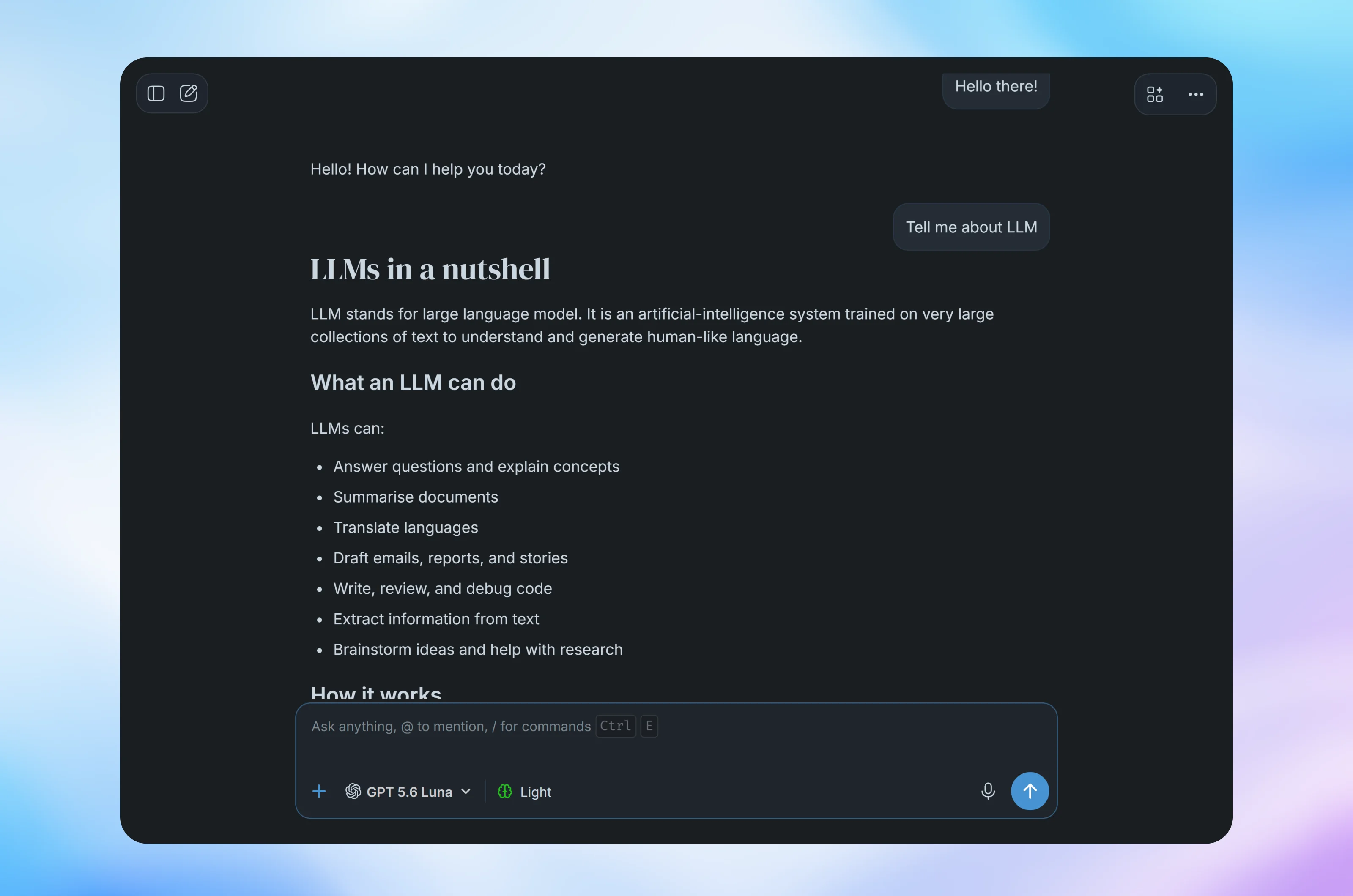
Starting a chat
Choose a model, enter your message, and send it. For simple requests, a short prompt may be enough. For more complex work, include relevant background, any requirements the response must follow, and the result you want.
Each message becomes part of the conversation. The model uses earlier messages as context, so you can ask follow-up questions without repeating everything. Start a new chat when you change to an unrelated topic or want a clean context.
Writing an effective prompt
A useful prompt usually includes some combination of the following:
- Task: Say clearly what you want the model to do.
- Context: Provide the background or source material it needs.
- Requirements: State any limits, details, or rules it should follow.
- Output: Describe the tone, format, length, or level of detail you prefer.
You do not need to include every part in every prompt. Add detail when it helps remove ambiguity or when the result must meet specific requirements.
Example
Basic prompt: Write a product announcement.
More specific prompt: Write a friendly product announcement for existing customers introducing our new team calendar. Keep it under 150 words, explain the two main benefits, and end with a link placeholder for trying the feature.
Give the model useful context
Models can produce better answers when they understand the situation. Include details such as the intended audience, your objective, what you have already tried, or examples of the style you want. Attach a file or image when the task depends on its contents, and explain what the model should look for.
Put important instructions directly in your message. Avoid assuming the model knows private information, recent events, or details that have not been provided in the conversation.
Ask for the output you need
Tell the model how the answer should be presented. You can request a short explanation, numbered steps, a comparison table, a draft email, structured data, or another useful format. You can also specify the audience and tone, such as “explain this to a beginner” or “write in a concise, professional tone.”
If accuracy matters, ask the model to identify assumptions, show its sources when available, or point out where information is uncertain. A confident response can still be incomplete or incorrect, so verify important facts and decisions.
Improve results with follow-up prompts
Prompting is often a conversation rather than a single request. If the first response is not quite right, say what should change. Refer to a specific part of the response and give a clear direction for the next version.
Useful follow-up prompts include:
- “Make this shorter and keep only the key decisions.”
- “Explain the second point with a practical example.”
- “Rewrite this for someone with no technical background.”
- “Compare these options by cost, effort, and risk in a table.”
- “Before answering, ask me for any missing information you need.”
Break complex tasks into steps
For larger tasks, work in stages. You might first ask the model to review the information, then create an outline, and finally draft the result. This gives you opportunities to correct assumptions and guide the work before the final response is produced.
When a request has several requirements, list them clearly. If you are unsure how to approach the task, describe your goal and ask the model to suggest a plan or ask clarifying questions before it begins.
Review the response
AI-generated responses may contain mistakes, outdated information, or invented details. Review the result before relying on it, especially for medical, legal, financial, academic, or other important decisions. Check calculations, quotations, links, and sources independently when accuracy matters.
Avoid sharing passwords, payment details, private keys, or other sensitive information in a chat. Only provide the context needed to complete the task.
Using voice
Use voice dictation to speak a prompt instead of typing it. Select the voice button beside the message box and allow microphone access when your browser asks for permission.
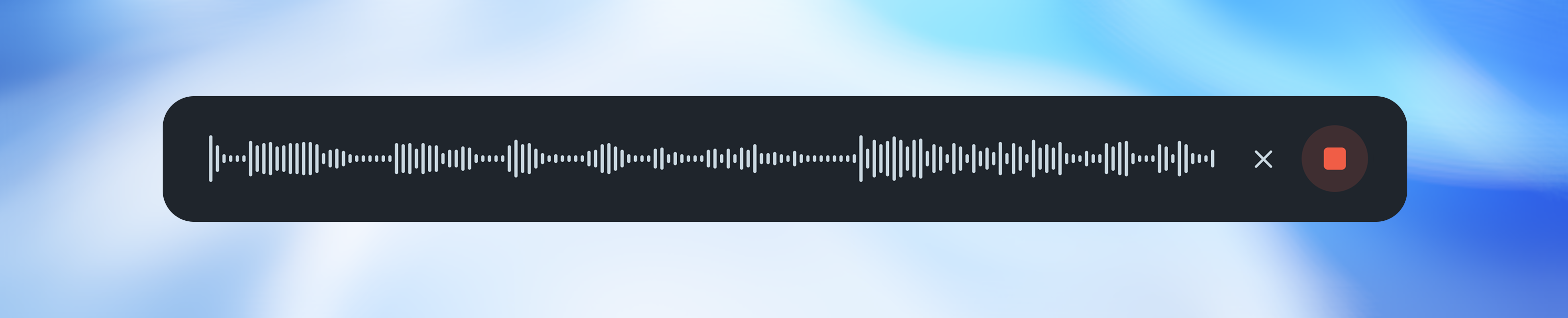
Select the voice button to start recording, then select the red stop button when you are finished. BuiltChat will process the recording and automatically populate the message box with the transcribed text, ready for you to review, edit, or send.
To discard a recording, select the X beside the waveform. Your recording will not be transcribed. Voice dictation requires a supported browser, an available microphone, and permission to use it.